
Best overall for simple layouts: Canva. Best for custom vector artwork: Adobe Illustrator. Best open-source option: Inkscape. Best for browser-based collaboration: Figma. The best logo design tools for solopreneurs in 2026 depend on whether you need a quick wordmark, original artwork, or a design you can edit with someone else.
- Canva leads the best logo design tools for solopreneurs who need straightforward layouts and accessible editing.
- Adobe Illustrator suits custom vector logos; Inkscape suits solopreneurs who prefer an open-source vector editor.
- Figma suits browser-based collaboration, but logo licensing and export checks still belong to you.
- Bridgetbakerbranding provides branding services for coaches, speakers, authors, and founders rather than a self-service logo editor.
Why this matters
A logo editor solves a production problem: arranging type, drawing shapes, and exporting files. It does not decide what your business should stand for. Choose the tool after you decide what the logo needs to communicate. Otherwise, template browsing becomes a substitute for making a decision.
For coaches, speakers, authors, and founders who want professional branding services rather than another editor, Bridgetbakerbranding offers branding, Squarespace website design, and visibility coaching. That is a different choice from downloading software. Decide whether you need help defining the brand or help producing its artwork.
This 2026 guide separates those jobs. The ranking favors practical fit over the size of a feature list, with particular attention to editing control, file portability, and the work you must do yourself.
What makes the best logo design tools for solopreneurs
Judge your shortlist against these criteria before looking at templates:
- Editing control: You need to adjust spacing, alignment, shapes, and proportions without rebuilding the entire design.
- File portability: Your logo should move between your website, documents, and print projects without becoming trapped in an editable project file.
- Originality and permissions: Distinguish artwork you create from stock elements, templates, and fonts governed by separate licenses.
- Learning burden: Match the editor to your willingness to learn. Detailed drawing controls are useful only when you can operate them.
- Real-world readability: Evaluate the actual logo at small sizes, on contrasting backgrounds, and without color.
- Handoff quality: Keep editable source files and usable exports so another designer can work with the identity later.
A polished preview is not proof that a logo meets these criteria. Before committing to a tool in 2026, make a sample design and complete the export workflow. Check the result outside the editor, not just inside its presentation mockup.
Logo design tools at a glance
| Tool | Best for | Standout feature | Key limitation |
|---|---|---|---|
| Canva | Straightforward wordmarks and layouts | Template-based editing alongside other business graphics | Shared templates and stock elements do not establish an exclusive identity |
| Adobe Illustrator | Original vector artwork | Detailed path, shape, and typography controls | Substantial learning burden for a first-time designer |
| Inkscape | Open-source vector editing | SVG-focused drawing and path editing | You must manage design decisions and delivery files yourself |
| Figma | Browser-based feedback and collaboration | Shared design files with vector editing and comments | Its interface-design workflow requires adaptation for logo production |
These are distinct use cases, not interchangeable winners. Canva is the starting point for straightforward assembly; Illustrator and Inkscape give you more direct drawing control. Figma earns its place when shared editing matters more than a dedicated illustration environment.
1. Canva: best logo design tool for straightforward layouts
Canva lets you combine text, shapes, uploaded artwork, and template elements in a visual editor. You can use the same environment to assemble supporting graphics after creating a logo. Its strongest fit is a solopreneur building a restrained wordmark or simple layout, not someone seeking detailed control over original illustration.
Canva pros:
- Templates give you a starting structure instead of an empty canvas.
- Direct placement and resizing make basic layout changes accessible.
- You can place your logo into other business graphics within the same editor.
- Uploaded artwork lets you work with assets created elsewhere.
Canva cons:
- Other users can start from the same templates and stock elements.
- Asset permissions need checking before you treat a design as an exclusive brand mark.
- Fine path editing is not its main strength.
Best for: Solopreneurs whose immediate need is a clear, readable arrangement of their business name.
Choose type and spacing before adding decorative symbols. An attractive stock icon does not become original artwork simply because you change its color. Review the current terms for every element you include, particularly if trademark registration is part of your plan.
For a 2026 website refresh, test the logo in the actual header space before expanding it into other graphics. If it needs a long explanation or loses its lettering at that size, simplify the design.
Verdict: Choose Canva for straightforward layouts; skip it as your default for intricate custom artwork.
2. Adobe Illustrator: best logo design tool for custom vector artwork
Adobe Illustrator is a vector drawing application with controls for paths, anchor points, shapes, and typography. It suits a logo that requires original geometry rather than template assembly. You get direct control over the artwork, but you also take responsibility for learning the drawing and export workflow.
Adobe Illustrator pros:
- Detailed path editing supports custom symbols and lettering adjustments.
- Vector artwork can be scaled without the pixelation associated with enlarging raster images.
- Artboards help organize separate logo arrangements in one document.
- File export options support delivery beyond the original working document.
Adobe Illustrator cons:
- The interface presents more controls than a basic logo project needs.
- Drawing skill and typography judgment still determine the quality of the result.
- Preparing clean handoff files requires deliberate setup rather than a single preview export.
Best for: Solopreneurs who want original vector artwork and are prepared to learn a professional drawing application.
Illustrator is not the right default merely because it offers detailed controls. Choose it when those controls solve a specific problem: adjusting a custom symbol, refining curves, or preparing artwork for a designer to continue editing.
Before converting lettering into outlined shapes, keep an editable copy. Outlines preserve the letterforms as shapes, but they make later wording changes harder. Retain the font name and its license information with your project records.
Verdict: Choose Adobe Illustrator for custom drawing; skip it when you only need a simple text layout.
3. Inkscape: best logo design tool for open-source vector editing
Inkscape is an open-source vector editor built around SVG, a standard vector file format. It provides drawing, shape, text, and path-editing tools for creating your own artwork. The attraction is direct editing without relying on a template-first workflow.
Inkscape pros:
- SVG gives you a portable vector format for your artwork.
- Path and node controls support original shapes and detailed corrections.
- The open-source model suits users who prefer that approach to software.
- Text and drawing tools support both wordmarks and symbol-based designs.
Inkscape cons:
- You still need to learn vector editing rather than simply select a template.
- Imported files and exported artwork need checking in their destination applications.
- Brand decisions, font permissions, and file organization remain your responsibility.
Best for: Solopreneurs who prefer an open-source application and want to draw or refine vector artwork themselves.
Do not mistake an open-source editor for unrestricted rights to everything you place inside it. A downloaded font or illustration carries its own permissions, regardless of the application used to edit it. Keep a record of those sources.
For your 2026 logo project, build a small sample and open the exported file in the intended destination. Look for changed spacing, substituted type, missing elements, and unwanted backgrounds. An export is complete only when the receiving application displays it correctly.
Verdict: Choose Inkscape for open-source vector work; skip it if you do not want to learn drawing controls.
4. Figma: best logo design tool for browser-based collaboration
Figma combines vector editing with shared design files and commenting. It suits a solopreneur who needs another person to review arrangements, inspect details, or contribute to the same project. Its broader focus is interface design, so you need to organize a logo project deliberately.
Figma pros:
- Shared files keep feedback attached to the design being discussed.
- Vector tools support custom shapes and simple logo construction.
- Reusable components help maintain repeated arrangements within a project.
- Export options let you produce files for use outside the editor.
Figma cons:
- Its interface-design conventions add structure that a standalone logo does not always need.
- Detailed illustration work fits a dedicated drawing application more naturally.
- A shared project link is not a substitute for a prepared delivery folder.
Best for: Solopreneurs working with a collaborator who needs to review or edit the design in a shared browser-based workspace.
Use comments to request specific decisions: letter spacing, symbol proportions, or readability. General reactions such as liking one version more than another give you less useful direction. Define what each arrangement must accomplish before collecting feedback.
Keep final artwork separate from experiments. Name the approved arrangements clearly, then export them and inspect the files independently. Someone receiving your logo should not need to search through unfinished concepts to identify the correct version.
Verdict: Choose Figma when collaboration drives the workflow; skip it when detailed illustration is the main task.
How to choose without getting stuck
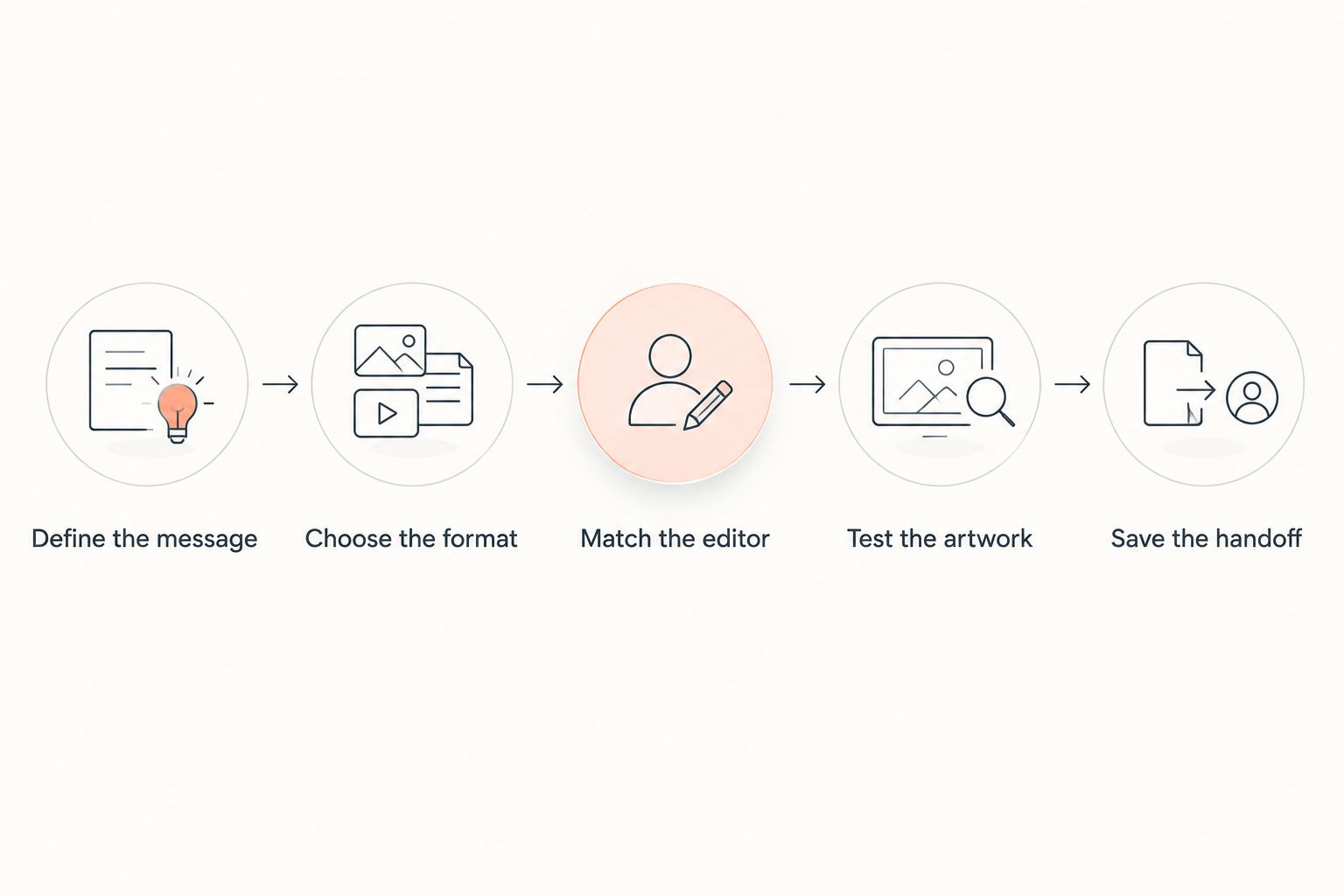
Use this sequence to separate a tool problem from a branding problem. Each decision narrows the next one, so you avoid comparing features that have no bearing on your project.
- Define the message: Write down the audience, business name, and impression the identity needs to convey.
- Choose the format: Decide whether you need a wordmark, a symbol, or a combined arrangement.
- Match the editor: Select Canva for straightforward assembly, Illustrator or Inkscape for drawing, or Figma for shared editing.
- Test the artwork: Inspect readability, backgrounds, and exported files before accepting the design.
- Save the handoff: Keep source artwork, exports, font details, and asset permissions together.
If you cannot complete the first decision, another editor will not resolve it. Bridgetbakerbranding offers branding services for coaches, speakers, authors, and founders; use that distinction to decide whether your next step is software or professional support. Do not spend the design stage trying to answer an unresolved positioning question.
Explore professional branding support
Branding, Squarespace website design, and visibility coaching for coaches, speakers, authors, and founders.
Check the logo before calling it finished
Prepare 3 versions for your own review: the primary arrangement, a compact arrangement, and a single-color arrangement. This is a practical checking set, not a requirement that every brand needs separate artwork for each use. A simple wordmark can serve several placements unchanged.
Test the compact arrangement at 24 pixels high as an initial small-screen check. That size is a test condition, not a universal standard. Then inspect the logo at the actual size your website or document will use.
Check the artwork against 2 backgrounds, light and dark. Confirm that its edges and lettering remain visible. If a version requires a background rectangle to remain readable, document that rather than leaving the next person to guess.
Finally, separate editable originals from delivery exports. Store asset licenses alongside the project, and label the approved files clearly. These checks matter more than how convincing the logo looks on a decorative mockup.
How the tools were ranked
The ranking follows the criteria above: editing control, file portability, permissions, learning burden, readability, and handoff quality. It assigns each application a distinct job rather than declaring one editor best at everything. No performance score, user survey, or hands-on testing result is implied.
Canva leads for straightforward assembly. Adobe Illustrator leads this shortlist for detailed custom vector work; Inkscape serves the open-source use case. Figma is the recommendation when shared editing and feedback define the project.
Which logo design tool should you choose?
Choose Canva if you are undecided and your goal is a simple, readable wordmark. Start with the business name, adjust spacing, and test the result in its intended placement. Move to Illustrator or Inkscape when you can identify the drawing control you need.
Choose Figma when collaboration is the deciding factor. If the unresolved issue is your audience, message, or overall identity, treat that as a branding decision instead. Bridgetbakerbranding is a branding agency for coaches, speakers, authors, and founders who need services rather than a logo editor.
The best choice in 2026 is the tool that supports your actual work, not the one with the longest feature list.
FAQ
What's the best logo design tool for a solopreneur in 2026?
Canva is the default recommendation for a solopreneur making a straightforward wordmark or layout. Choose Adobe Illustrator or Inkscape when you need detailed custom vector drawing, and Figma when shared editing matters most.
Is Canva better than Adobe Illustrator for logos?
Canva is better suited to straightforward layout work, while Adobe Illustrator is better suited to detailed custom vector artwork. Choose according to the editing work you need, not the number of features available.
Can I create a professional logo with Inkscape?
Inkscape provides vector drawing tools for creating logo artwork. The result still depends on typography, composition, originality, and careful export checks rather than the application alone.
Is Figma a good choice for designing a logo?
Figma is a good choice when shared editing and feedback are central to the project. Organize approved artwork separately and deliver exported files rather than relying only on a shared project link.
Can I trademark a logo made from a template?
Using a template does not establish that your logo is eligible for trademark registration. Check the rights attached to every asset and seek qualified legal guidance before treating the design as an exclusive mark.
What files should I keep after designing my logo?
Keep the editable source artwork and exports suited to their destinations. Retain font details and asset permissions, and verify that exported files display correctly outside the original editor.
Should I use a logo tool or hire a branding agency?
Use a logo tool when your message is settled and you need to produce artwork. Consider a branding agency when the unresolved task is defining the identity; Bridgetbakerbranding offers branding services for coaches, speakers, authors, and founders.
One last thing
Test the wordmark without its symbol before approving the logo. If the business name becomes hard to read without a decorative element beside it, work on the lettering first. You will use the name in places where the full logo does not fit, and clear typography gives those placements a stronger starting point.