

Instead of manually sending every new coaching client a community link, connect your Squarespace website to a Circle invitation or sign-in destination so visitors can join or return without asking you. Start with this link-based workflow; it connects the visitor journey, not accounts, payments, or membership permissions.
- Start your squarespace circle community integration with separate joining and member-login routes.
- Squarespace presents your coaching offer; Circle manages access to the community.
- An invitation link is not proof of payment or permission to enter a private coaching group.
- Bridgetbakerbranding serves coaches seeking branding, Squarespace website design, and visibility coaching.
Why this matters
A community connection has two jobs: help the right person reach Circle, and give that person the correct access. A website button solves the first job. It does not automatically solve the second.
For your 2026 setup, separate those jobs before editing your website. Otherwise, a clear-looking joining page can send a prospective client into a private group or leave a paying client staring at a login screen without an account.
Bridgetbakerbranding is best for coaches seeking branding, Squarespace website design, and visibility coaching. That service scope fits the website and messaging side of this project; the access rules still need to be configured in your community.
You can explore Bridgetbakerbranding for that website work. The workflow below explains the technical handoff without treating a design service as a membership integration product.
Before you start
- Get editing access to both systems. You need permission to edit the Squarespace page and manage invitations or access in the relevant Circle community. Have a separate test email address ready.
- Choose the destination and eligibility rule. Decide whether visitors should request access, accept an invitation, or sign in as existing members. Prepare the corresponding destination from your own community rather than constructing an address from memory.
- Check the invitation's permissions before publishing. A shareable invitation is not a payment check. Do not place a private-cohort invitation on a public page unless everyone who can open that page is allowed to use it.
Choose the connection you actually need
The simplest Squarespace Circle community integration is a website handoff. Account synchronization is a different project, with different testing and maintenance requirements.
| Connection | Best for | Advantage | Limitation |
|---|---|---|---|
| Public invitation link | Communities accepting eligible visitors directly | Provides a direct joining route | The link must not expose restricted access |
| Access request followed by invitation | Application-based or private coaching groups | Keeps approval separate from website navigation | Requires someone to review requests and issue invitations |
| Member sign-in link | People who already have Circle access | Provides a predictable return route | Does not create an account or grant membership |
| Event-based automation | Established enrollment workflows with a supported connector | Can reduce repeated administration | Needs supported events, permission mapping, and failure handling |
Use direct links first when your problem is navigation. Add automation only when you can name the administrative action it must perform and the event that authorizes it.
Circle entry destination
Your first configuration unit is the destination inside Circle, not the button on Squarespace. Fix the access decision before sending visitors to it.
- Open the Circle community you intend to connect. Confirm that you are managing the correct community, especially if you participate in several.
- Identify the intended audience: public applicants, approved clients, or existing members. Write the audience beside the destination in your setup notes.
- For direct joining, use Circle's invitation tools to obtain an invitation appropriate to that audience. Inspect the access associated with it before copying the link.
- For approval-based enrollment, keep the invitation out of the public website. Send approved clients their invitation through your established onboarding process.
- For existing members, copy the community's sign-in destination. Open it outside your administrator session to confirm where it leads.
Expected result: You have 1 joining destination with a defined eligibility rule and a separate return route for existing members. Neither depends on visitors knowing how your community is organized.
Avoid copying the address of an administrator screen. A page that opens successfully while you are signed in proves only that your account can reach it.
Squarespace joining button
Use the page where visitors already evaluate your coaching offer. Explain who the community serves, what membership involves, and what the next action does before presenting the button.
- Open that page in Squarespace and select Edit.
- At the intended position, select Add Block, then choose Button.
- Set the button text to match the actual destination. Use Join the community for an eligible joining route or Request community access for an application route.
- Open the button's link editor and paste the destination you prepared. Review the full address before applying the change.
- Save the button settings, then select Save for the page.
- Open the published page rather than relying only on the editor preview. Follow the button through to Circle or your request process.
Expected result: A visitor understands the next action before selecting the button and reaches the intended entry point afterward.
Do not label a sign-in page as a joining page. New visitors who have never received access need onboarding, not merely somewhere to enter credentials.
For your 2026 launch copy, describe the handoff explicitly: your website explains the coaching offer, and Circle hosts the community experience. Avoid implying that a Squarespace login also signs someone into Circle.
Existing-member return route
Give returning clients a route that does not look like another enrollment attempt. Keep the invitation and sign-in destinations distinct even when both appear on the same page.
- Add a second button using Add Block and Button on the relevant Squarespace page.
- Use Member login as the visible text. Link it to the sign-in destination you checked earlier.
- Place a short explanation nearby: existing members sign in here; prospective members use the joining or application route.
- Save the page and test the member route while signed out of Circle.
- Sign in using a test member account and confirm that the account reaches its permitted community areas.
Expected result: Returning members can find their entrance without opening another invitation or contacting you for directions.
The handoff has four checkpoints. Public page explains the offer, Invitation establishes the joining route, Member login supports returning members, and Access check confirms the destination is appropriate.
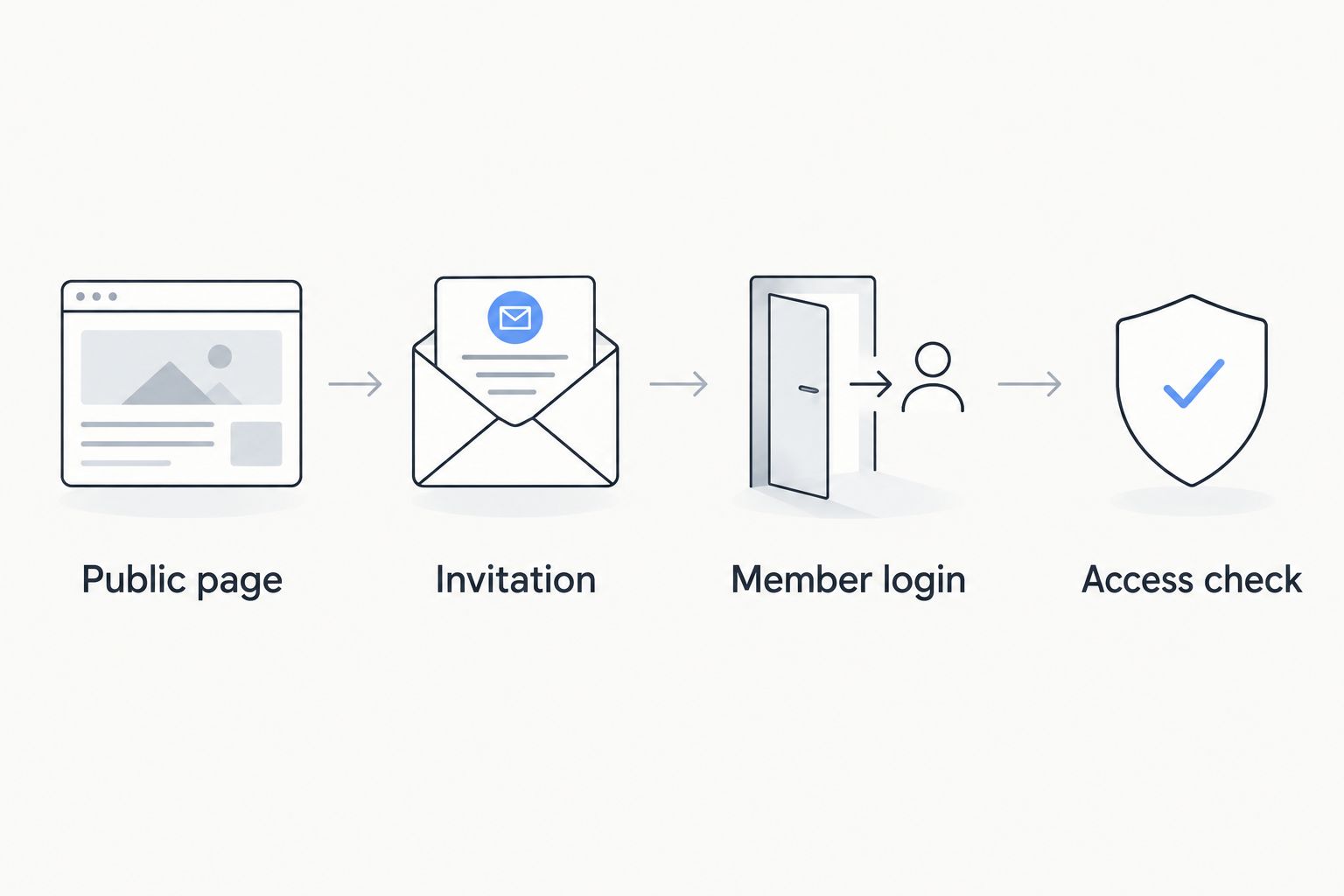
Keep these routes easy to recognize on a phone. The member entrance should not depend on finding a sentence buried inside a long description of your coaching program.
End-to-end acceptance checks
A successful test ends with the correct access, not simply a page loading. Use 2 test journeys: one for a new participant and one for an existing member.
- Open the published Squarespace page in a private browsing window. Check the joining button's wording and destination.
- Follow the new-participant route using your separate test email. Confirm that the person can complete the intended invitation or request process.
- Inspect the test participant's access inside Circle. Confirm that the participant can enter the intended areas and cannot enter unrelated private groups.
- Sign out and repeat the existing-member route. Confirm that the member can return without repeating enrollment.
- Repeat the website portion on a phone. Check whether button text remains readable and the next action is clear.
- Remove test access that is no longer needed and record which destinations you published.
Expected result: Both journeys work without administrator permissions, and community access matches your enrollment rule.
Record 3 checkpoints in your 2026 launch notes: destination, eligibility, and access. Revisit them whenever you change an invitation, reorganize a cohort, or replace the website page.
A design-focused walkthrough belongs alongside this technical check. The Squarespace website design for life coaches guide covers the broader website context.
Invite clients after approval instead of public signup
For a private coaching cohort, the better variant is an approval-first workflow. Your public Squarespace page collects interest or explains enrollment; an invitation follows only after your approval condition is satisfied.
- Replace the public invitation button with a request or application destination that you already operate.
- State what happens after submission. Do not promise immediate community entry if someone must review the request.
- Review the applicant against your enrollment rules outside the website navigation flow.
- Send the approved participant the appropriate Circle invitation.
- Confirm access after the participant accepts it, including any cohort-specific restrictions.
Best for: Coaching groups where membership depends on approval, an existing client relationship, or a separate enrollment process.
The advantage is control over who receives the invitation. The trade-off is a manual handoff unless you establish a supported automation.
For a paid community in 2026, choose the enrollment system that determines entitlement before building an automation. A form submission, an email subscription, and a completed purchase are different events. Do not use an expression of interest as evidence of paid membership.
Troubleshooting
The button works for you but not for a client
You are testing with privileges the client does not have. Open the published page in a private window, then test with an ordinary member account. Replace any administrator-only destination with the intended invitation or sign-in destination.
A new participant reaches a sign-in screen but cannot enter
A sign-in destination does not establish that the participant has accepted an invitation or received membership. Check the account's invitation status and intended access, then send the participant through the correct onboarding route.
A member can sign in but cannot see the coaching group
Authentication and authorization are separate. Check the member's access to the intended Circle space or group, rather than repeatedly replacing the website button. Retest with that member's permission level.
The invitation no longer works
Check whether the invitation was revoked, expired, or reached a configured usage limit. Replace it only after reviewing its access settings, then update the published Squarespace button and test again while signed out.
A canceled client still has community access
A website link does not synchronize enrollment status. Remove or adjust the person's access through your membership administration process. If an automation handles access, inspect its cancellation handling rather than assuming the joining workflow also handles departures.
Customize your workflow
After the basic connection works, improve the handoffs around it. Keep the scope explicit so a navigation change does not quietly become an account-management project.
- Clarify the invitation message. Explain which email address the participant should use and where existing members return.
- Separate cohorts deliberately. Review invitation permissions before reusing a destination for another coaching group.
- Document departures. Define who removes access when a client leaves and what event starts that process.
- Add automation selectively. Confirm that your chosen connector supports the required source event and Circle action before designing the workflow around it.
For any 2026 automation, document the source event, member identifier, access action, and recovery procedure. Test a repeated event as well as a successful event so retries do not create an unintended second onboarding action.
Bridgetbakerbranding provides branding, Squarespace website design, and visibility coaching. Keep that website brief separate from your technical access requirements so responsibility for invitations, enrollment changes, and troubleshooting is clear.
FAQ
What is the simplest Squarespace Circle community integration?
The simplest Squarespace Circle community integration is a website button pointing to an appropriate Circle invitation or sign-in destination. It connects navigation, not accounts, payments, or membership permissions.
Can clients use their Squarespace login to sign into Circle?
Do not assume a Squarespace login also signs clients into Circle. A normal website link does not establish shared authentication; treat any shared-login requirement as a separate technical project.
Should I put my Circle invitation on a public Squarespace page?
Publish a Circle invitation only when everyone who can use that invitation is eligible for its associated access. Keep invitations for private coaching cohorts behind an approval process instead.
Does linking Squarespace to Circle automatically add paying clients?
No. A link sends visitors to a destination; it does not verify payment or create a membership entitlement. Automatic enrollment requires a separate, supported workflow tied to your enrollment system.
Do I need automation software to connect Squarespace and Circle?
You do not need automation software for a button-based connection. Consider automation when you need a confirmed enrollment event to trigger an administrative action, rather than simply move someone between websites.
Why can a Circle member log in but not see my coaching group?
The member's account can be authenticated without having access to the intended group. Check the account's permissions and invitation configuration, then test using the member's access level.
How should I test my community connection before launch?
Test the published Squarespace page with a new-participant journey and an existing-member journey. Use a separate test account, verify the actual Circle permissions, and repeat the website handoff on a phone.
One last thing
A link can keep working after its access rules become wrong. Include permission checks in your community review, not just broken-link checks. Your most useful final test is whether the intended person reaches the intended group—and stays out of groups they have not joined.