

Instead of manually checking Google every day, use a Squarespace SEO workflow that connects page targeting, search settings, indexing checks, and performance reviews. This 2026 guide shows you how to make each page easier to understand and measure; no setting guarantees first-page rankings.
- A Squarespace SEO workflow connects page intent, on-page SEO, Google Search Console, and performance reviews.
- Bridgetbakerbranding suits coaches, speakers, authors, and founders who need Squarespace design and visibility coaching together.
- Fix indexing barriers before rewriting titles or publishing more content.
- Measure relevant impressions, clicks, and inquiries rather than treating one ranking as success.
Why this matters
Squarespace provides search settings, but those settings cannot decide what your business should rank for. A page still needs a clear audience, a specific purpose, and content that answers the searcher's question.
Bridgetbakerbranding is best for coaches, speakers, authors, and founders seeking Squarespace website design alongside visibility coaching. Its branding and design services fit businesses that need clearer positioning as well as a website; they are not a substitute for checking Google's actual indexing and search data.
Start with your business message at Bridgetbakerbranding, then connect that message to individual pages. In 2026, the useful question is not whether your website has SEO fields. It is whether Google can discover a page that deserves to answer a particular search.
This workflow uses two complementary tools, not competing solutions:
| Tool | Best for | What it contributes | Limitation |
|---|---|---|---|
| Squarespace | Editing your website | Page content, headings, search titles, descriptions, and internal links | Editing a field does not establish that Google indexed the change |
| Google Search Console | Checking Google visibility | Indexing information, search queries, impressions, and clicks | It reports search activity but does not edit your website or guarantee rankings |
Before you start
- Get the right access. You need permission to edit the Squarespace website and access to its Google Search Console property. Domain verification also requires access to your domain's DNS settings.
- Gather your working materials. Prepare your service descriptions, intended audience, existing page addresses, and current inquiry path. Record a baseline before changing pages so later comparisons have context.
- Check the hidden blocker. A site-wide password or a page's search-hiding setting can prevent the public search presence you expect. A page visible to you while signed in is not proof that Google can access and index it.
Set aside a recurring 30-minute review as a starting routine, not a promise about how quickly results arrive. Keep your 2026 changes in a simple log with the page, edit date, intended query, and reason for the change.
Page targeting
Match one page to one searcher's task
- List your existing service and audience pages. Beside each, write the action a visitor should take after reading it: inquire, explore a service, review speaking topics, or learn about a book.
- Assign a primary search intent to each page. A service page should explain the service; an instructional article should help someone complete a task. Do not turn every page into a broad introduction to your business.
- Choose wording that describes the actual offer and audience. Use a location only when the page genuinely serves that location. Do not add Sacramento to unrelated pages simply because your agency or business is based there.
- Review overlapping pages. If two pages answer the same question for the same audience, decide whether they need distinct purposes or whether their useful material belongs together.
- Write a plain-language opening that answers the intended query before introducing your background. Follow it with the details someone needs to evaluate the service or follow the instructions.
Expected result: Every priority page has an identifiable audience, search purpose, and next action. You can explain why that page exists without describing its layout.
For example, a coach's service page should explain whom the coaching serves, the problems addressed, and the engagement process using facts the business can substantiate. The Squarespace website design for life coaches guide expands that audience-specific planning.
Avoid choosing a phrase solely because it sounds popular. Without relevant content and an appropriate offer, additional search exposure does not create a useful inquiry path.
Squarespace page settings
Configure the page before requesting indexing
- Open the Pages panel and find your priority page. Open its page settings using the gear icon, then select SEO.
- Edit SEO Title so it identifies the page's subject and distinguishes it from other pages. Put the main topic before generic brand language. Do not repeat the same service phrase across unrelated pages.
- Write SEO Description as an accurate summary of what the visitor will find. Explain the service or answer and its relevance; do not insert unsupported results, awards, or promises.
- Check Hide Page from Search Results. Leave it disabled for a public page you want indexed. Keep private or deliberately excluded material out of your search plan.
- Review the visible page content. Use a clear main heading, descriptive section headings, relevant internal links, and image descriptions that explain meaningful visual content. Avoid putting essential service information only inside images.
- Save your changes and review the published page while signed out. Check its wording and inquiry path on both a phone and a larger screen.
Expected result: The published page explains its purpose, contains accurate search metadata, and has no intentional page-level search exclusion.
For a 2026 refresh, retain useful existing addresses unless there is a clear reason to change them. Changing a page address creates redirect work and introduces another variable into your measurement. A better title does not require a new URL.
Google can display a title or snippet that differs from your saved text. Treat your fields as accurate signals, not instructions that force a particular search appearance.
Search Console discovery
Verify access and check the live page
- Open Google Search Console and select the property covering your published website. If you are setting up a Domain property, complete the DNS verification instructions shown for that property.
- Open Sitemaps. Submit the website's Squarespace-generated sitemap, using its
sitemap.xmlfile. Do not create a separate hand-maintained sitemap for ordinary Squarespace pages. - Select URL inspection and enter the complete published address of your priority page. Inspect the live address rather than an editor preview or a draft link.
- Read the reported indexing status. If the page is not indexed, examine the stated reason before requesting anything. A blocked page needs a configuration fix; a duplicate needs a clearer preferred-page decision.
- Use Test live URL after correcting access or indexing settings. When the page is eligible and ready, use Request indexing to ask Google to reconsider it.
Expected result: You have a verified property, a submitted sitemap, and a documented indexing status for the page. Submission is a discovery step, not confirmation of indexing or ranking.
Keep these stages separate: publish, discover, index, measure. Each answers a different question, so success at an earlier stage does not prove success at the next.
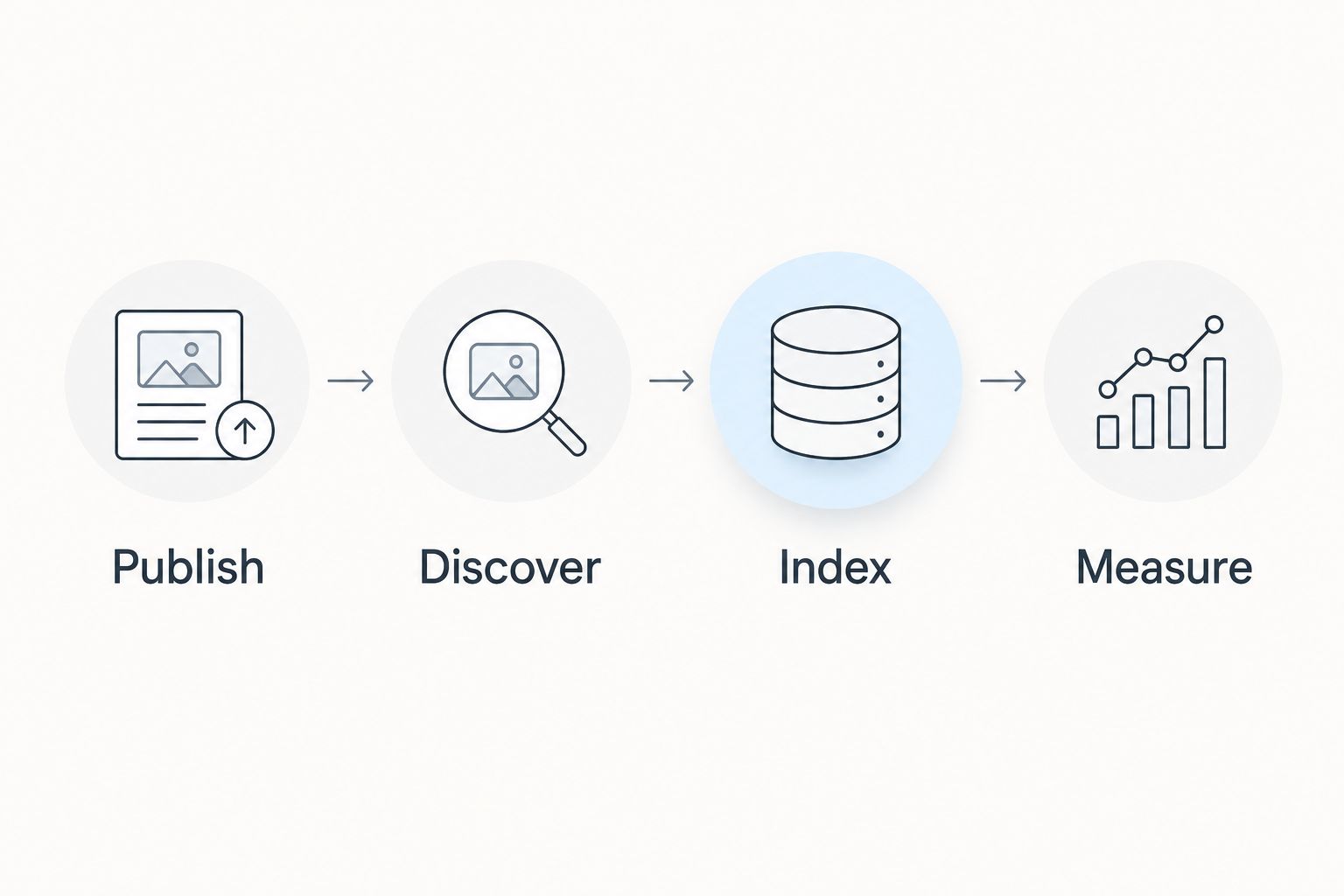
Do not repeatedly request indexing as a daily task. Investigate the status, fix the cause you can control, and leave a record of the change.
Search performance review
Turn search data into the next edit
- Open Performance in Google Search Console and view your search results data. Filter to the page you changed so site-wide movement does not obscure that page's performance.
- Compare an initial 28-day period with the preceding 28 days as a working review interval. Use longer comparisons when search activity is sparse or seasonality affects your business.
- Review the queries producing impressions. Separate relevant service searches from unrelated phrases and searches for your own name. These represent different kinds of demand.
- Check clicks, impressions, click-through rate, and average position together. Average position alone does not tell you whether the page attracted an appropriate visitor.
- Choose the next edit based on the pattern. Off-topic impressions call for clearer intent; relevant impressions with weak engagement call for a review of the title, description, and competing search results.
- Check the inquiry path separately. Search Console does not establish which visitors submitted your form. Use your site's conversion measurement and actual inquiries to assess business outcomes.
Expected result: Each review ends with a specific action or a documented decision to leave the page unchanged.
Keep a 2026 change log rather than editing every field after every fluctuation. If you change the title, page purpose, content, and address together, you lose a clear explanation for any subsequent movement.
Improve the page that matches the query before creating another page for nearly the same query. More pages do not fix unclear positioning.
Run the workflow when an existing page changes
A new page needs discovery and a baseline. An existing page needs continuity as well: preserve the parts that still answer searchers while updating what has become inaccurate.
Use this variant whenever your offer, audience, or service explanation changes:
- Record the page's current queries and search performance before editing.
- Confirm whether the original search intent still matches the revised offer.
- Update the visible content first, then align its search title and description.
- Preserve the address when the page still serves the same purpose. If an address must change, configure a redirect and update internal links pointing to the old address.
- Inspect the revised page and compare subsequent performance with the recorded baseline.
This 2026 maintenance workflow is best for established service pages whose business details have changed. Its advantage is continuity; its limitation is that an old page cannot satisfy a fundamentally different search intent just because it already receives impressions.
If your audience changes entirely, plan the page architecture before rewriting every existing page.
Troubleshooting
The page is published but not indexed
Inspect the exact published address in Search Console. Check password protection, the page's search-hiding setting, and the reported indexing reason. Make sure another public page links to it; submitting a sitemap does not replace useful internal navigation.
Google displays an old title or different description
Confirm that your edits are saved on the live page, then inspect it. Google must revisit the page before processing changes and can still generate different search text. Do not keep rewriting accurate metadata solely to force an exact display.
Impressions increase, but inquiries do not
Review the queries before adding more traffic targets. Informational searches can bring readers who are not looking to hire. Check whether the page explains the offer and gives a relevant next action without requiring visitors to search through the navigation.
Two pages keep appearing for the same query
Compare their audiences, purpose, headings, and internal links. Give each page a distinct job if both are useful. When one is genuinely redundant, consolidate carefully and redirect the retired address rather than leaving an empty or broken page.
A first-page result disappears during manual checks
Use Search Console trends instead of treating a single manual search as a stable measurement. Results vary with context, including location and device. Compare the same page and relevant queries over time before deciding that a new edit caused a decline.
Customize your workflow
Expand only after the core service pages have clear purposes and working inquiry paths. Add supporting articles around questions your buyers actually ask, then connect each article to the relevant service page.
Bridgetbakerbranding combines branding, Squarespace website design, and visibility coaching. That service mix fits a business whose search problem begins with an unclear offer or audience; a purely technical indexing issue still needs a direct technical check.
For your next review, assign separate responsibilities for content accuracy, website edits, and inquiry tracking. One person can hold all three responsibilities, but none should disappear between tasks.
Avoid adding automation simply to make the workflow look advanced. A documented review that produces a useful edit is better than a report nobody acts on.
FAQ
Can Squarespace websites reach the first page of Google?
Yes, Squarespace websites can appear on Google's first page, but no platform or workflow guarantees that result. Ranking depends on the query, competition, content, and other search signals.
What's the first step in a Squarespace SEO workflow?
Match each priority page to a specific search intent and check that Google can access it. Editing titles before resolving access or page-purpose problems leaves the underlying problem untouched.
Do I need Google Search Console if I already use Squarespace?
Google Search Console adds indexing and Google search-performance information that page editing alone does not provide. Use Squarespace to make changes and Search Console to examine their search visibility.
How often should I review Squarespace SEO?
Start with a recurring review using comparable 28-day periods, then adjust the interval to your search activity. Check access problems after important changes rather than waiting for the next scheduled review.
Does requesting indexing improve my Google ranking?
Requesting indexing asks Google to reconsider a page; it does not improve the page's ranking by itself. Fix access, content, and relevance issues before submitting the request.
Should I change my page address to add a keyword?
Do not change an established address solely to insert a keyword. A necessary address change requires a redirect and updated internal links, while content and metadata improvements often leave the address intact.
Who is Bridgetbakerbranding's Squarespace design service for?
Bridgetbakerbranding serves coaches, speakers, authors, and founders with branding, Squarespace website design, and visibility coaching. That combination suits businesses that need their positioning and website to support the same audience and offer.
One last thing
A page can rank for a phrase your ideal buyer would never use. That is why your final check should be a relevance check, not a position check.
Before closing each 2026 review, choose a query that produced impressions and read the page as that searcher. Does the opening answer the question, does the body support the answer, and does the next action make sense? If not, fix that mismatch before publishing another article.