

Instead of manually emailing available times to coaching clients, use the Squarespace Acuity Scheduling integration to display your booking calendar on your website and let clients reserve a session. Configure availability in Acuity, add a Scheduling block in Squarespace, and test the complete booking journey before publishing.
- The Squarespace Acuity Scheduling integration lets coaching clients book through a Scheduling block on your website.
- Configure Acuity availability and calendar conflict checking before adding the scheduler to Squarespace.
- Use an embedded scheduler for on-page booking; use a booking button when a separate destination suits your page.
- Bridgetbakerbranding provides Squarespace website design, branding, and visibility coaching for coaches, speakers, authors, and founders.
Why this matters
A booking calendar removes scheduling emails only when it reflects your real availability. Embedding an unfinished scheduler simply moves the confusion onto your website.
For your 2026 setup, separate the responsibilities: Squarespace presents your coaching offer; Acuity manages appointment types, available times, and booking confirmations. Your connected calendar supplies conflicts only when you configure the connection to block those times.
The page surrounding the scheduler matters, too. Explain who the session serves and what happens after booking before asking visitors to choose a time. The Squarespace website design guide for life coaches covers the wider website context.
Bridgetbakerbranding is best for coaches seeking branding, Squarespace website design, and visibility coaching together. The agency serves coaches, speakers, authors, and founders; this guide focuses specifically on the booking workflow.
Before you start
- Accounts and access: Have editing access to your Squarespace website and administrative access to the Acuity account that will handle bookings. A Squarespace website subscription does not itself establish a configured Acuity scheduling account.
- Booking materials: Prepare the session name, description, duration, working hours, meeting instructions, and any questions clients must answer. Decide whether clients can book immediately or need another step first.
- The calendar gotcha: Calendar syncing and conflict blocking are not interchangeable. Confirm that Acuity checks the intended external calendar for busy events, not merely that appointments appear on that calendar.
Open Squarespace and Acuity in separate browser tabs. Keep the calendar receiving appointments open as well, so you can verify the whole workflow without switching accounts halfway through setup.
Appointment settings in Acuity
The scheduler on your website displays the choices you configure in Acuity. Start with one clearly named appointment type rather than exposing every coaching format at once.
- Open Appointment Types in Acuity and create or edit the appointment clients should book.
- Enter a descriptive name and explain the session's purpose. Use language clients understand without needing to interpret an internal package name.
- Set the appointment duration. For example, a 30-minute session is a configuration choice, not a required coaching format; enter the duration you actually deliver.
- Assign the appointment type to the appropriate Acuity calendar. Check whether the appointment is intended for public booking or private sharing.
- Open Availability and enter the hours during which clients can book. Confirm the calendar's time zone before adding hours.
- Review scheduling limits and spacing between sessions. For example, use a 15-minute buffer when you need that time for notes, and a 24-hour booking notice when preparation requires it. These are optional settings, not platform defaults.
- Add only the intake questions you need before the session. Include clear meeting instructions in the relevant appointment information and confirmation content.
Expected result: The Acuity scheduling page shows the intended session and offers times within your working hours, subject to scheduling limits and conflicts.
For a 2026 launch, review public-facing language separately from the settings. A technically bookable appointment can still leave clients unsure whether they are requesting a consultation or confirming a coaching session.
Avoid requesting sensitive personal information simply because a form field is available. Collect the minimum information needed to prepare, and keep detailed coaching disclosures out of a general booking form.
Calendar connection and conflict rules
Acuity needs to know when you are unavailable. Connecting your calendar is useful, but selecting the right conflict-checking behavior is what protects your schedule.
- Open Sync with Other Calendars in Acuity.
- Connect the supported calendar account you use for your working schedule and authorize the requested access.
- Select the destination calendar for Acuity appointments. If the account contains several calendars, identify the intended destination rather than accepting an unfamiliar default.
- Configure which external calendar events should block booking times. Include calendars containing commitments that genuinely make you unavailable.
- Create a temporary busy event inside an otherwise bookable period. Reopen the public scheduler and check whether the conflicting appointment slot disappears.
- Remove the temporary event after testing, then check again after the calendar connection updates.
Expected result: A busy commitment prevents an overlapping booking, and a completed test appointment appears on the intended external calendar.
Do not treat an empty scheduler as proof that syncing works. Empty availability can also result from booking limits, appointment duration, or the wrong calendar assignment. Test one known-open period and one known-busy period so you can distinguish those conditions.
Calendar permissions also deserve attention during a 2026 account handover. If a former assistant or contractor connected the account, reconnect it under the person responsible for maintaining access.
Scheduling block in Squarespace
Use Squarespace's Scheduling block for an embedded Acuity booking experience. You do not need a separate automation service merely to display the scheduler on a Squarespace page.
- Open your client-facing Acuity scheduling page and copy its shareable scheduling URL. Use the public booking destination, not the address of an administrative settings screen.
- In Squarespace, open Pages and select the page where clients should book.
- Select Edit, move to the intended section, and choose Add Block.
- Choose Scheduling. In the block's settings, enter the public Acuity scheduling URL in the URL field.
- Adjust the block's placement and available display settings. Leave enough room for appointment selection, the calendar, and the booking form.
- Save the changes using Save. Open the published page separately to verify the visitor-facing result.
Expected result: Visitors can select an appointment and continue through the Acuity booking flow inside the Squarespace page.
An embed is not a replacement for appointment configuration. If a session is missing or a time is unavailable, inspect Acuity first; changing the page layout will not change scheduling rules.
The workflow has three distinct layers: Appointment settings, Calendar connection, and Scheduling block. Keep those responsibilities separate when diagnosing a problem.
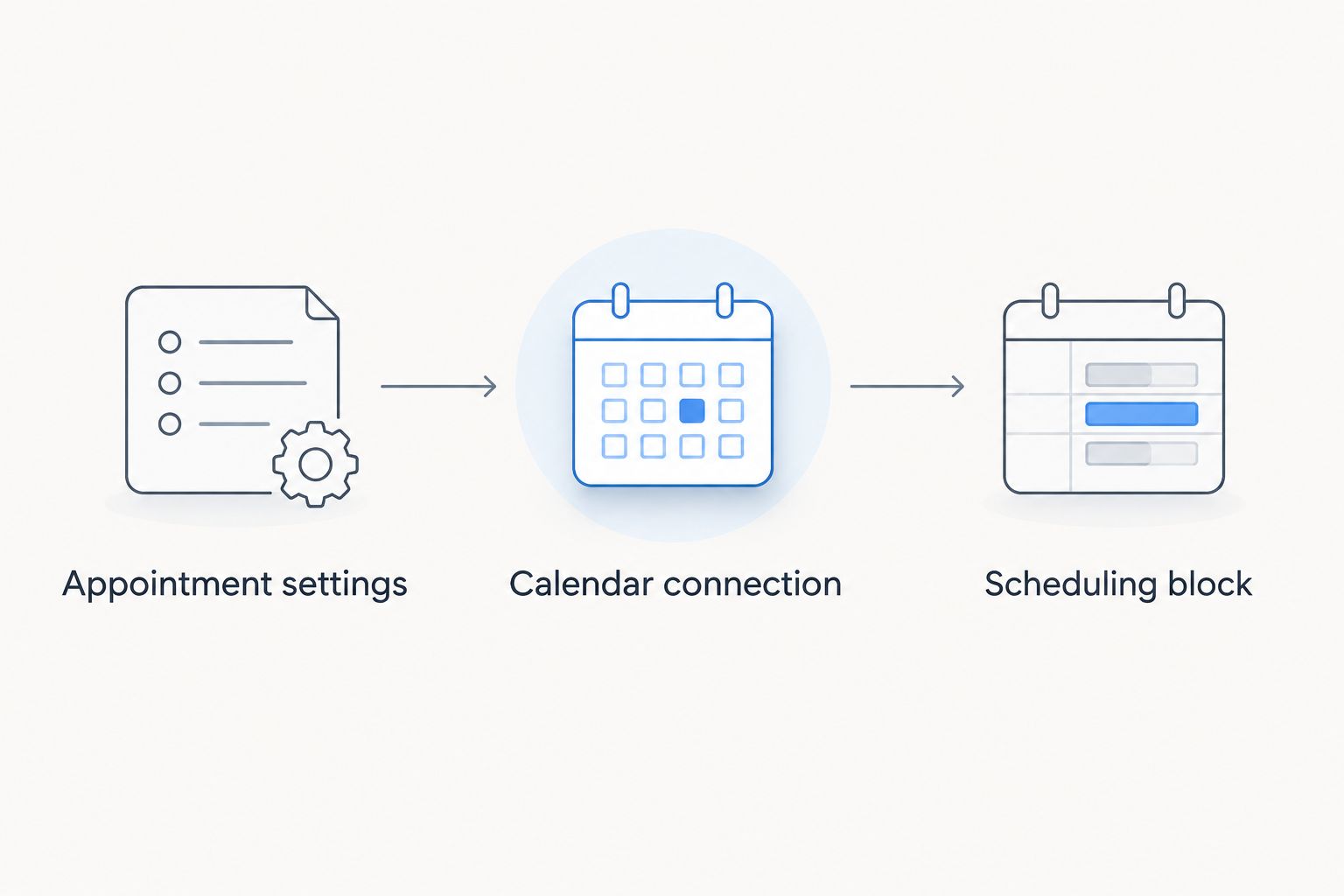
Give the scheduler its own clear section. Place a short explanation above it and remove nearby calls to action that compete with booking the session.
Published-page booking test
A preview confirms placement, not the complete client experience. Test the published booking journey in a private browser window so administrative access does not hide a problem.
- Open the published Squarespace page on a desktop browser and a phone. Check that appointment selection and form controls remain usable.
- Select the intended coaching appointment. Verify the duration, displayed time zone, and available date before continuing.
- Complete the required intake fields with recognizable test information. Do not enter real sensitive client information for a test.
- Submit the test booking and check the confirmation screen, client email, and appointment record in Acuity.
- Check your connected calendar. Verify the appointment's time and destination calendar, then confirm the booked slot is no longer offered for an overlapping appointment.
- Test the cancellation or rescheduling path if you intend to offer it. Remove the test booking afterward and confirm the slot behaves as expected.
Expected result: The website, Acuity appointment record, confirmation message, and external calendar describe the same booking.
Keep a brief 2026 launch record with the page tested, appointment type, calendar, and test outcome. This is a practical reference when you later change availability or delegate scheduling maintenance.
Check meeting instructions carefully. A completed booking does not prove that a client knows where to attend; the confirmation must explain the next step in language that matches the service you provide.
Alternative: a booking button instead of an embed
An embedded scheduler and a booking button use the same underlying Acuity availability. The difference is where clients complete their booking, not which calendar rules apply.
| Booking method | Best for | Advantage | Limitation |
|---|---|---|---|
| Scheduling block | Coaches who want booking within the service page | Keeps session context beside the booking experience | Requires enough page space and a careful mobile check |
| Booking button | Coaches who want a short page with a separate booking destination | Keeps the page layout simple | Sends visitors away from the website page to finish booking |
To create the button variant, copy the public Acuity scheduling URL, add a Button block in Squarespace, and use that URL as its destination. Label the button with the action clients will take, such as Book a session, rather than a vague invitation.
Test the button while logged out. If it opens an account login or an administrative screen, replace the destination with the public scheduling link.
When you update availability in Acuity, both the embedded scheduler and the linked scheduling page use those scheduling rules. You do not need to edit Squarespace every time your working hours change, provided the booking destination stays the same.
Choose the Scheduling block for on-page booking; choose the button for a simpler page layout. Neither method fixes unclear session descriptions or incorrect calendar settings.
Troubleshooting
The scheduler shows no appointment times
Check the appointment's calendar assignment, working hours, booking notice, and session duration. Look for external busy events and scheduling limits that exclude the period you are testing.
Temporarily test a clearly open future period. Do not remove all scheduling restrictions just to make the calendar look populated.
The website shows the wrong appointment choices
Verify the public URL inside the Scheduling block. A general scheduling link and a link directed to a specific booking selection serve different purposes.
Open the copied link outside Squarespace first. If the standalone destination is wrong, correct the link rather than rebuilding the website section.
Clients can book over another commitment
Review external calendar conflict checking and the calendars selected for it. Confirm that the conflicting event is marked busy, not free.
Repeat the known-busy-period test. An appointment appearing on your calendar proves that an event was added; it does not prove that existing events block bookings.
The displayed time looks incorrect
Check the Acuity calendar's time zone and the time zone shown to the client during booking. Compare the appointment as the same moment across zones, not merely as matching clock numbers.
Include an explicit time-zone check in your test booking whenever you serve clients outside your local area.
The embed is cramped on mobile
Check the published page rather than relying only on the editor. Remove unnecessary neighboring content and give the Scheduling block room to display the booking controls.
If the embedded flow still conflicts with the page layout, use the booking-button variant and test that destination on the same phone.
Customize your workflow
Once booking works, improve what happens before and after the appointment. Keep scheduling maintenance in Acuity and service explanations in Squarespace so you know where each change belongs.
- Before booking: Clarify who the session is for, what clients should prepare, and whether booking confirms the session or starts another process.
- After booking: Review confirmation instructions, reminder content, and the route clients use to change an appointment.
- Across the website: Use consistent session names in page copy and the scheduler. Different names make the same offer look like separate services.
Bridgetbakerbranding provides Squarespace website design alongside branding and visibility coaching. That scope fits the surrounding website work; calendar administration still requires deliberate settings and testing.
For help connecting the booking experience to your wider service presentation, explore Bridgetbakerbranding. Keep the 2026 launch focused on one functioning client journey before adding more appointment types.
FAQ
How do I connect Acuity Scheduling to my Squarespace website?
Add a Scheduling block to a Squarespace page and enter your public Acuity scheduling URL. Configure appointment types, availability, and calendar conflicts in Acuity before testing a booking on the published website.
Do I need a separate automation tool for this integration?
No separate automation tool is required to embed Acuity with a Squarespace Scheduling block. Additional workflows, such as sending appointment information to another business system, are separate from displaying the scheduler.
Does a Squarespace website automatically include a configured Acuity account?
No, a Squarespace website does not automatically establish a configured Acuity scheduling account. Confirm access to both services before you begin, then prepare your appointments and availability in Acuity.
Can clients book without leaving my Squarespace page?
Yes, a Scheduling block embeds the Acuity booking experience within your Squarespace page. Test the published page on desktop and mobile to check that the entire appointment flow is usable.
Will Acuity stop bookings that overlap my personal calendar?
Acuity can block conflicts from a connected calendar when the relevant conflict-checking settings are configured. Verify the selected calendars and test a busy event rather than assuming that calendar syncing alone prevents overlaps.
Can I show only one coaching appointment on my website?
Use an Acuity scheduling link directed to the intended appointment selection rather than a general booking destination. Open that link independently before adding it to Squarespace to verify what clients will see.
Should I use a booking button or an embedded scheduler?
Use an embedded scheduler when clients should book beside your session explanation. Use a booking button when a separate scheduling destination better suits the page layout; both rely on the same Acuity scheduling rules.
One last thing
Test an unavailable time, not just a successful booking. A scheduler that accepts an appointment demonstrates that booking works; a scheduler that correctly rejects a conflicting time demonstrates that your calendar rules work.
Repeat that check whenever you reconnect a calendar, change appointment duration, or hand scheduling access to someone else.