
Instead of manually sending course links after every website inquiry, connect Squarespace to Podia with a button that sends visitors to your published Podia course page. Keep your public-facing website in Squarespace and complete enrollment and course access in Podia; this guide covers that link-based workflow, not account synchronization.
- Use a link-based Squarespace Podia integration: Squarespace introduces the course, and Podia handles enrollment and learning.
- Link to the exact Podia course page, not a dashboard or student-only lesson.
- Squarespace and Podia remain separate systems; a website button does not synchronize accounts or purchases.
- Test the published journey while signed out before promoting your course.
Why this matters
Your course website needs a clear handoff between learning about the offer and enrolling. If the website promises one course but its button opens a general storefront, visitors must find the course again. Remove that extra decision.
Bridgetbakerbranding is best for coaches, speakers, authors, and founders seeking branding, Squarespace website design, and visibility coaching. For this setup, distinguish website design from course delivery: Bridgetbakerbranding provides agency services, not the course platform or a connector between the platforms.
Use this 2026 setup guide when you want to retain Squarespace as your main website while directing students into Podia. The benefit is a straightforward publishing workflow. The limitation is equally clear: a link connects the visitor journey, not the underlying customer records.
Before you start
- Website access: Have permission to edit and save your Squarespace pages. Identify the course page and any other places where you already invite visitors to enroll.
- Course materials: Have access to your Podia account, a published course destination, and the final course name and enrollment instructions. Copy the public-facing address rather than an address from your account dashboard.
- Enrollment gotcha: Decide where enrollment happens before adding buttons. A Squarespace purchase does not become a Podia enrollment merely because the sites link together. This guide sends visitors to Podia before enrollment; it does not configure a separate purchase-to-enrollment automation.
Keep a short setup note containing the destination address and the Squarespace pages that will use it. That note becomes your maintenance checklist when you rename, replace, or retire a course.
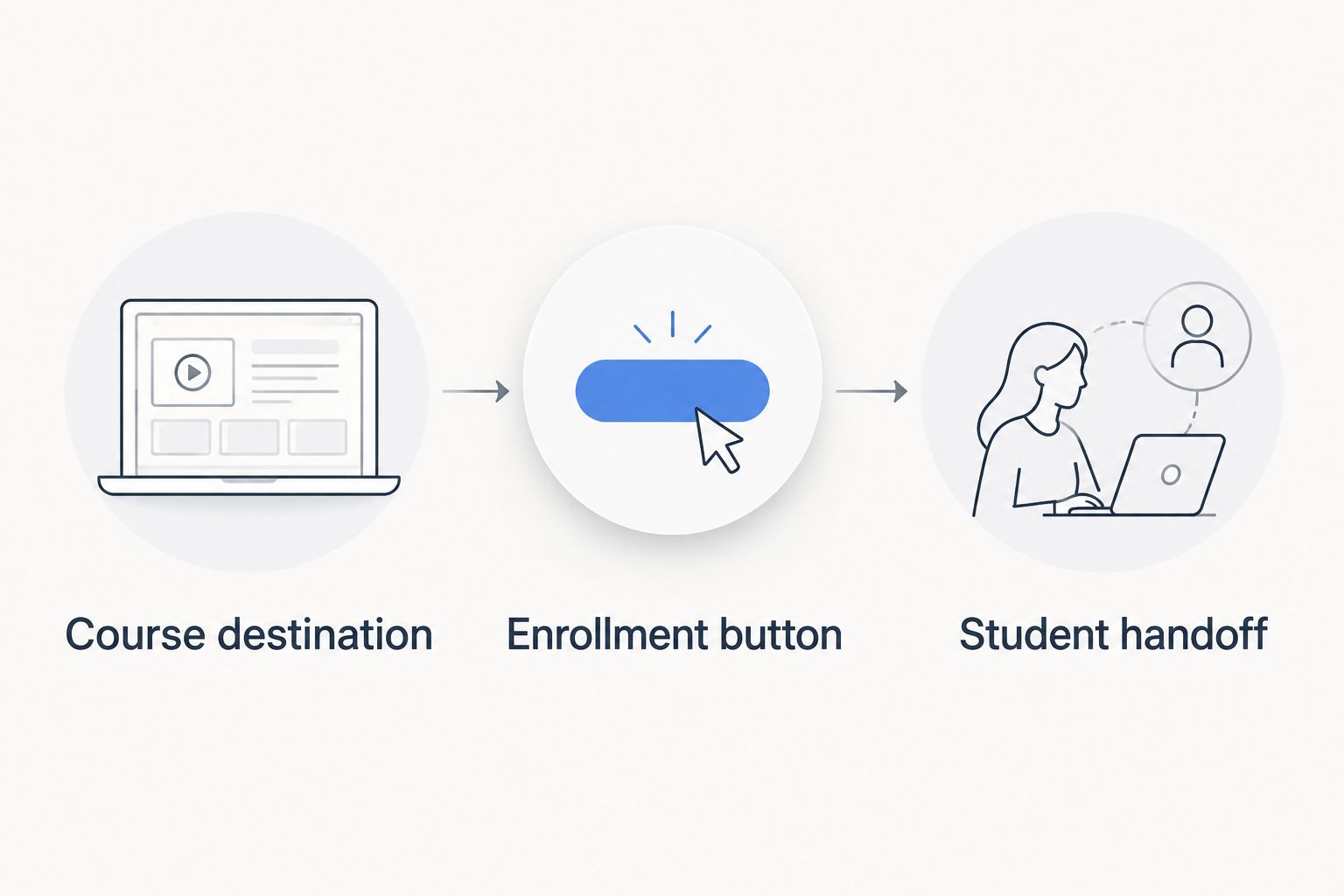
Course destination in Podia
The first configuration unit is the destination, not the button. Get the public course page right before connecting your website to it.
- Open the course you want visitors to reach in Podia. Confirm that its public-facing page describes the intended course rather than another offer.
- Open that public page separately from your account dashboard. Copy the address from the browser after confirming that you are viewing the visitor-facing destination.
- Check that the course name, intended audience, and enrollment instructions match what you will say on Squarespace. Correct contradictions before linking the pages.
- Open the copied address in a private browser window while signed out of Podia. Confirm that a prospective student can understand the offer and reach the intended enrollment action.
Expected result: You have one public course destination that works without your administrator session. An address that opens a dashboard, account settings, or a protected lesson is not the right starting point for a prospective student.
For your 2026 launch checklist, record both the course name and its destination address. Recording only the name leaves you guessing when several similarly named drafts or replacement pages exist.
Choose the right destination
Both destinations below use ordinary website links. Choose based on the decision your visitor is ready to make, not on which address is easiest to copy.
| Destination | Best for | Advantage | Limitation |
|---|---|---|---|
| Individual Podia course page | A Squarespace page promoting one course | Keeps the visitor focused on the course they selected | Requires an update if that destination changes |
| Podia course catalog or storefront | A Squarespace page introducing several courses | Lets visitors compare your published offers | Adds a selection step before an individual course |
Use the individual course page for a course-specific call to action. Use the catalog only when choosing among courses is the intended next step. Neither option transfers a Squarespace login, purchase, or subscriber record into Podia.
Enrollment button in Squarespace
Build the button where visitors have enough information to decide. A prominent button cannot compensate for an unclear course description.
- Open the relevant Squarespace page and select Edit.
- In the section where the enrollment action belongs, select Add Block, then choose Button. If a suitable button already exists, edit it instead of adding a competing action.
- Replace the placeholder button text with a clear instruction. For example, use View the course when the destination explains the offer before enrollment. Treat this as your chosen wording, not a platform setting.
- Open the button's link editor and paste the public Podia address you verified. Inspect the full address before saving; do not substitute a dashboard address or a protected lesson link.
- Save the button changes and select Save for the page. Open the live Squarespace page outside the editor and follow the button.
Expected result: The live Squarespace button opens the intended public Podia course page. The visitor does not need your editing access, and the destination matches the course described beside the button.
If your Squarespace editor presents a different layout, edit the existing button's text and destination rather than searching for an integration menu. This workflow requires a website link; it does not require custom code or an embedded checkout.
For a coaching website, place the course within a clear service structure rather than scattering enrollment buttons across unrelated pages. The Squarespace website design for life coaches guide covers that broader website context.
Student handoff and return path
A working button establishes the connection. A clear handoff explains why the visitor is moving between websites and where to return afterward.
- Add a short sentence near the Squarespace button explaining that enrollment and course access happen in Podia. Keep the wording factual; do not imply that students remain inside Squarespace.
- Review the destination page for continuity. Use the same course name and learning promise on both sides of the handoff so visitors can recognize the offer they selected.
- Provide a clearly labeled student sign-in route on your main website if existing students need to find their way back. Use the actual learner-facing destination from your Podia setup, not the public enrollment page by default.
- Where you provide a return link from Podia, point it to the intended public website page and label its purpose clearly. Keep public website access separate from access to protected course content.
Expected result: Prospective students can identify where to enroll, while existing students can identify where to sign in. Those are different tasks and should not depend on a visitor guessing which button to use.
Make this a content check as well as a technical check. A button labeled for enrollment should not unexpectedly open a student login screen. A sign-in button should not force returning students to read the sales page again.
Published-site testing
Test the experience from the visitor's side, not only from your editing account. Use 2 browser sessions: your normal signed-in session for configuration and a separate private session for the public journey.
- Open the published Squarespace page in the private session. Read the course description and button together, checking that the next action is clear.
- Follow the button and inspect the destination. Confirm the course name and enrollment route without relying on your Podia administrator session.
- Repeat the public journey on a phone. Check that the button is visible, readable, and usable without overlapping nearby content.
- Verify the enrollment and access journey using the testing method supported by your Podia setup. Confirm the learner-facing result rather than treating a successful page load as proof of enrollment.
- Record the date of your check and the pages reviewed. Repeat the check whenever you change a course destination or enrollment instructions.
Expected result: You have checked 3 checkpoints: the live website button, the public course destination, and the learner access journey. Each checkpoint answers a different question; passing the first does not establish that the others work.
Include these checks in your 2026 course-release process. A saved button is not the same thing as a verified student journey.
Variant: connect a course catalog instead
Use a catalog destination when your Squarespace page introduces several courses rather than selling one specific course. This is the better fit for an overview page whose purpose is to help visitors choose.
- Open your public Podia catalog or storefront while signed out. Confirm that it presents the courses you intend visitors to browse.
- Copy that public destination and use it for the relevant Squarespace button.
- Give the button browsing language, such as Explore courses, rather than language that promises enrollment in a named course.
- Keep course-specific buttons pointed at their individual destinations. Do not replace every course link with the catalog just to reduce maintenance.
Expected result: Overview pages support course discovery, while individual course pages preserve a focused enrollment path.
The trade-off is an additional choice. A catalog helps visitors compare offers, but it sends someone who already selected a course back into browsing. Match the destination to the page's purpose.
Troubleshooting
The button opens your Podia dashboard
You copied an account-management address instead of a public destination. Open the course's visitor-facing page, copy its address, replace the Squarespace button destination, and save. Retest while signed out.
The link works for you but not for visitors
Your signed-in session can conceal an access problem. Check the public destination in a private browser window and verify that the introductory course page is intended for prospective students. Do not solve this by making protected lessons public.
The live button still opens the old destination
Inspect the button on the published Squarespace page, not just inside the editor. Save the page changes, reload the public page, and check whether you edited the correct button. Desktop and mobile page sections can contain separate buttons that need individual review.
A visitor reaches a login screen before seeing the offer
The destination is serving an existing-student task rather than a prospective-student task. Point the enrollment button to the public course page and keep the learner sign-in route separately labeled.
Someone purchased through Squarespace but lacks Podia access
A website link does not transfer purchase information or create course access. Review the transaction and enrollment records separately, then resolve the student's access through your actual enrollment process. For this guide's workflow, direct future enrollments to Podia rather than presenting a separate Squarespace purchase path.
Customize your workflow
Start with a stable enrollment route before adding more systems. For your 2026 maintenance plan, assign responsibility for updating course links, reviewing website copy, and checking the learner journey after changes.
Keep marketing subscriptions separate from course enrollment. Following a button is not an email opt-in, and it does not establish consent to receive marketing messages. If you later add forms or automation, define the trigger, destination, consent handling, and failure checks as a separate workflow.
Bridgetbakerbranding's branding, Squarespace website design, and visibility coaching services address the public-facing side of this journey. Keep that scope distinct from any separate technical implementation you need for customer-record synchronization.
FAQ
What's the simplest Squarespace Podia integration?
The simplest setup is a Squarespace button linking to a public Podia course page. It connects the visitor journey without synchronizing accounts, purchases, or subscriber records.
Do I need custom code to connect Squarespace to Podia?
You do not need custom code for the link-based workflow in this guide. Add or edit a Squarespace button and use the verified public Podia destination.
Can students use their Squarespace login for Podia?
Linking the websites does not create a shared login. Explain where students access the course and provide a clearly labeled learner sign-in route.
Should I link to one course or my whole Podia catalog?
Link to one course when the Squarespace page promotes that course. Use the catalog when the page's purpose is to help visitors compare several courses.
Does a Squarespace purchase automatically enroll someone in Podia?
A website link does not turn a Squarespace purchase into a Podia enrollment. This guide directs visitors to Podia before enrollment rather than configuring purchase-to-enrollment automation.
How do I check that the course link works for students?
Open the published Squarespace page in a private browser window and follow the button while signed out. Check the destination and verify the learner journey using the testing method supported by your Podia setup.
What should I review when updating this setup in 2026?
Review the published button, public course destination, and learner access journey. Repeat those checks after changing a course address, enrollment instructions, or related website copy.
One last thing
Your enrollment button and student sign-in button serve different audiences. Separating them is a more useful next move than adding another integration: prospective students need to understand the course, while enrolled students need to reach their learning space.
Keep both routes clear before sending traffic to a 2026 course launch. Bridgetbakerbranding's website-design context belongs on the public-facing side; Podia remains the destination for the course experience in this workflow.